Before you begin:
- Purchase Printing Credits if necessary.
- On your device, save your document as a PDF file.
Printing via the OnCampus Printing Portal:
1. In a web browser, navigate to the OnCampus Printing Portal and sign in using your Vanguard College Microsoft Account.
2. From the OnCampus Printing Portal, select WebPrint, then Submit a Job.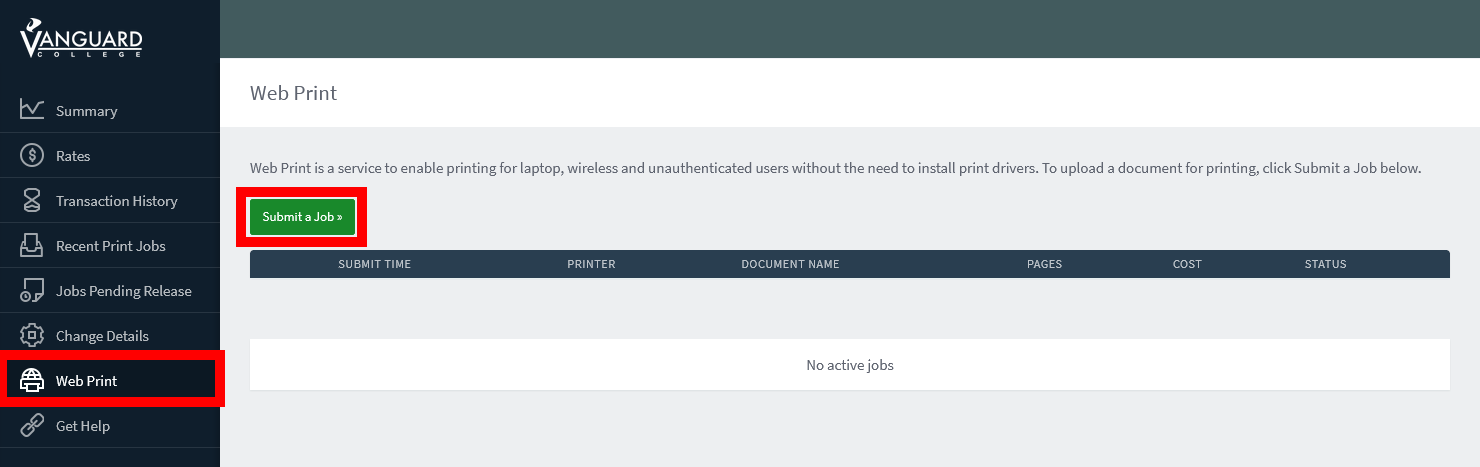
3. Select an appropriate printer from the list, then select Print Options and Account Selection.
- Select Vanguard Library for black & white, single sided prints. Full colour pages will be converted to black & white,
- Select Vanguard Photocopier for black & white, or full colour, double-sided, prints. Prints will be charged appropriately per page for black & white, or colour.
- For other printing options, check out Mobility Print or USB Print.
4. Customize print options as required, then select Upload Documents.
5. Upload a PDF Document from your device, then select Upload & Complete.
Problems with Printing:
Click here to get help with common printing issues, or to request a refund.
Was this article helpful?
That’s Great!
Thank you for your feedback
Sorry! We couldn't be helpful
Thank you for your feedback
Feedback sent
We appreciate your effort and will try to fix the article